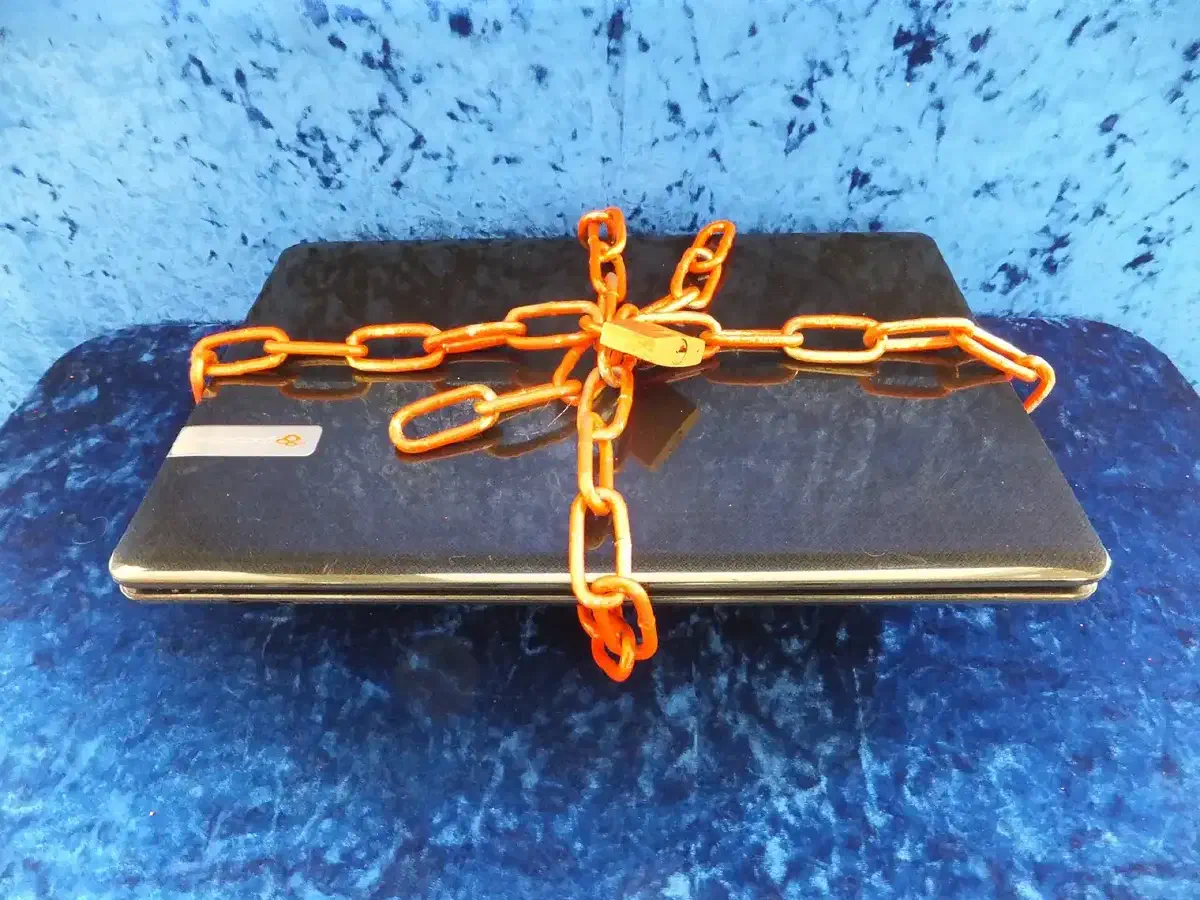
Most preppers spend their money on food, water and power, then keep the paperwork that proves who they are, where the land is and what they own on a laptop with a reused password. That is a gap. Your medical records, deeds, insurance policies, bank logins and the contacts you would need after a disaster all live in digital form, and the people who go after them don’t care that you stock six months of rice.
Cybersecurity is the same discipline as any other kind of prepping: work out what can go wrong, rank the risks, and fix the cheap ones first. Nearly everything below costs nothing or very little. What it takes is an afternoon to set up and some habit afterwards.
What you are actually defending against #
A cyber threat is any activity meant to disrupt, damage or get unauthorized access to a computer, a network or the data on it. The ones that matter to an individual household are few:
- Phishing. Deceptive emails, texts or websites that trick you into handing over a password or card number.
- Malware. Software built to damage a system or open it to outsiders, including viruses and spyware.
- Ransomware. Malware that encrypts your files and demands payment to release them.
- Social engineering. Someone earns your trust, in person or online, to get you to share something confidential or take an action you shouldn’t.
- Account takeover and identity theft. Usually the result of one of the above, or of a password leaked in a breach somewhere else.
Your digital footprint is everything about you that exists online: accounts, messages, browsing history, photos, purchase records, the details you’ve posted on social media. You can’t shrink it to zero, but you should know how big it is. Search your own name, list the accounts you still have, and close the ones you no longer use. Every dormant account is a door someone else may eventually find open.
Then rank your own risks. A prepper with a ham radio licence, a published address and a forum history has a different exposure from someone who just keeps family photos on a phone. Ask what a stranger could learn about you, what they could do with it, and what you’d lose if the device died tomorrow.
Passwords and the second factor #
Passwords are the first line of defense, and the rules haven’t changed. Make them long, at least 12 characters, and unique to each account. Mixing upper and lower case, numbers and symbols helps, but length and randomness matter more than cleverness. Don’t use “password”, “123456”, a birthday, a pet’s name or your address; anyone can find that information. Avoid keyboard runs and consecutive digits too. If you want something you can remember, string together unrelated words that mean something only to you.
Nobody can remember dozens of long, unique passwords, which is why a password manager belongs in every setup. It generates, stores and encrypts your credentials and fills them in when needed, so you only have to remember one strong master passphrase. The usual options each have trade-offs. 1Password is easy to use and well encrypted, but it charges a monthly subscription. LastPass works across platforms and can share passwords, though it has had data breach concerns. Dashlane monitors the dark web and has a password changer tool, but costs the most. Pick one, and use it for everything, including your Wi-Fi and router logins.
Two-factor authentication (2FA) is the single best addition. It asks for something you know, the password, and something you have, such as a code on your phone, a fingerprint or a hardware security key. Even if a criminal gets your password, they still need the second factor. Turn it on for email first, because email resets every other account, then banking, then social media and cloud storage. If you have a choice, use an authenticator app such as Google Authenticator or Authy instead of SMS. Text messages can be intercepted, while app codes are time-limited, single-use and generated on your device.
Updates, devices and your home network #
Software updates are mostly security patches. When a vendor publishes one, the flaw it fixes becomes public knowledge, and attackers go looking for machines that haven’t been updated. Turn on automatic updates for your operating system, browser, apps and antivirus software. That removes forgetfulness from the equation.
Install reputable antivirus software on computers and phones and keep it current. Add a firewall, which monitors and controls traffic in and out of the machine, while antivirus scans files and programs for known malware. Neither is perfect, but together they stop the bulk of everyday attacks.
Your router is the front door to everything in the house, and most people never touch its settings. Do four things:
- Change the default administrator username and password. These are well known and published online.
- Turn on WPA2 encryption, or WPA3 if your hardware supports it, so traffic between your devices and the router can’t be read from outside.
- Set a Wi-Fi password of at least 12 characters that has nothing to do with your name or address.
- Disable remote management unless you have a specific reason to use it.
Physical security counts as well. Lock your screens when you walk away, keep the router somewhere that visitors can’t get at, and store backup drives and important documents in a safe or locked cabinet. A strong lock does nothing for you against ransomware, but a stolen laptop is a more common loss than a hacked one.
Encryption, VPNs and private messaging #
Encryption turns data into something unreadable without the right key. Use full-disk encryption on laptops and phones, so that if a device is lost or stolen, everything on it stays locked. Most modern systems include it; you only have to switch it on. For especially sensitive files, such as financial records, scans of IDs or deeds, add file-level encryption with a tool built for the job.
A VPN creates an encrypted tunnel between your device and the sites you visit, and masks your IP address, which would otherwise reveal your approximate location. Its main value is on public Wi-Fi, where an unsecured network lets anyone nearby snoop. Choose carefully. Some providers log and sell their users’ data, which defeats the purpose. Look for a clear, transparent privacy policy and independent reviews, and be wary of anything free with no obvious business model. Better still, skip public Wi-Fi for anything sensitive and use your cellular connection.
For everyday communication, use messaging apps with end-to-end encryption, such as Signal or WhatsApp, so that only you and the recipient can read the messages. Check that a website uses HTTPS (the padlock in the address bar) before you enter personal details. If you need to protect email, PGP or S/MIME can encrypt it, although both take some effort to set up. Don’t discuss sensitive matters on unencrypted services or open networks.
Phishing and social media #
Phishing is still the most common way people get compromised, because it targets judgment rather than software. Warning signs include urgent language, requests for money or personal data, misspelled words, a sender address that doesn’t quite match the organization it claims to be, and unexpected attachments. If a message claims to come from your bank, don’t click through. Contact the bank using a phone number or website you already know is real. Never open unknown attachments or links before verifying the source.
Social media needs the same care. Give each account its own strong password, review the privacy settings, limit what the public can see, and be cautious about accepting friend requests from strangers. Don’t post your address, phone number, financial details or the layout of your property. For a prepper, the habit of not advertising what you stock or where you keep it is basic operational security, online as much as in the neighborhood.
Backups #
Backups are your insurance against ransomware, hardware failure, theft and mistakes. Keep copies in more than one place: an external hard drive for a physical copy you can reach quickly, a cloud service such as Google Drive, Dropbox or OneDrive for an off-site copy, and ideally a third offline copy that sits in a safe. Having several locations protects you from a local disaster, such as fire or flood, that would take out the computer and the drive beside it.
Schedule automatic backups so they happen without you thinking about them. Then test them. Restore a few files every few months, because a backup you’ve never restored from is a guess. And write a short recovery plan: where the backups are, how to restore them, who to call for technical help, and what to do first if you suspect an attack. Include changing your passwords and checking your accounts for unauthorized activity.
Monitoring and keeping up #
Check your bank and credit card statements regularly and report anything unfamiliar immediately. In the US you can request a free copy of your credit report from each of the major bureaus through AnnualCreditReport.com; look at it at least once a year for signs of identity theft. Turn on login alerts and account activity notifications where they’re available.
When you retire a phone, laptop or hard drive, wipe it properly before you sell, donate or recycle it. Use a reputable data erasure tool and reset to factory settings. Simply deleting files leaves them recoverable.
Threats change quickly, so keep learning. Follow reputable cybersecurity news sources, take an online course or a workshop, and join a forum where practitioners compare notes. If your situation is complicated, for instance you run a small business from home, a consultant can assess your setup and recommend fixes that fit. Organizations will want more than an individual does: a written cybersecurity policy, regular security audits, access controls limiting sensitive data to the people who need it, and staff training.
Make it a family matter #
Your own habits only go so far if a teenager clicks a bad link on the shared network. Teach everyone in the house the basics: strong passwords, how to spot phishing, what not to share online, and who to tell when something looks wrong. A short written family plan works well, covering the household rules for internet use and what to do after a suspected incident. Revisit it every year, the same way you rotate stored food and check batteries.
A starter checklist #
If you do nothing else this week, do these in order:
- Install a password manager and change your email, banking and cloud passwords.
- Turn on 2FA, using an authenticator app, for those same accounts.
- Turn on automatic updates everywhere.
- Change your router’s default login and check that WPA2 or WPA3 is on.
- Enable full-disk encryption on your laptop and phone.
- Set up automatic backups to an external drive, plus one off-site copy.
- Review your social media privacy settings.
None of this requires technical expertise. It does require getting started before something goes wrong, which is the point of prepping in the first place.
This piece is part of our wider coverage of security and communications.